 Cosmil
This Page is Still Under Construction
Simple Search#
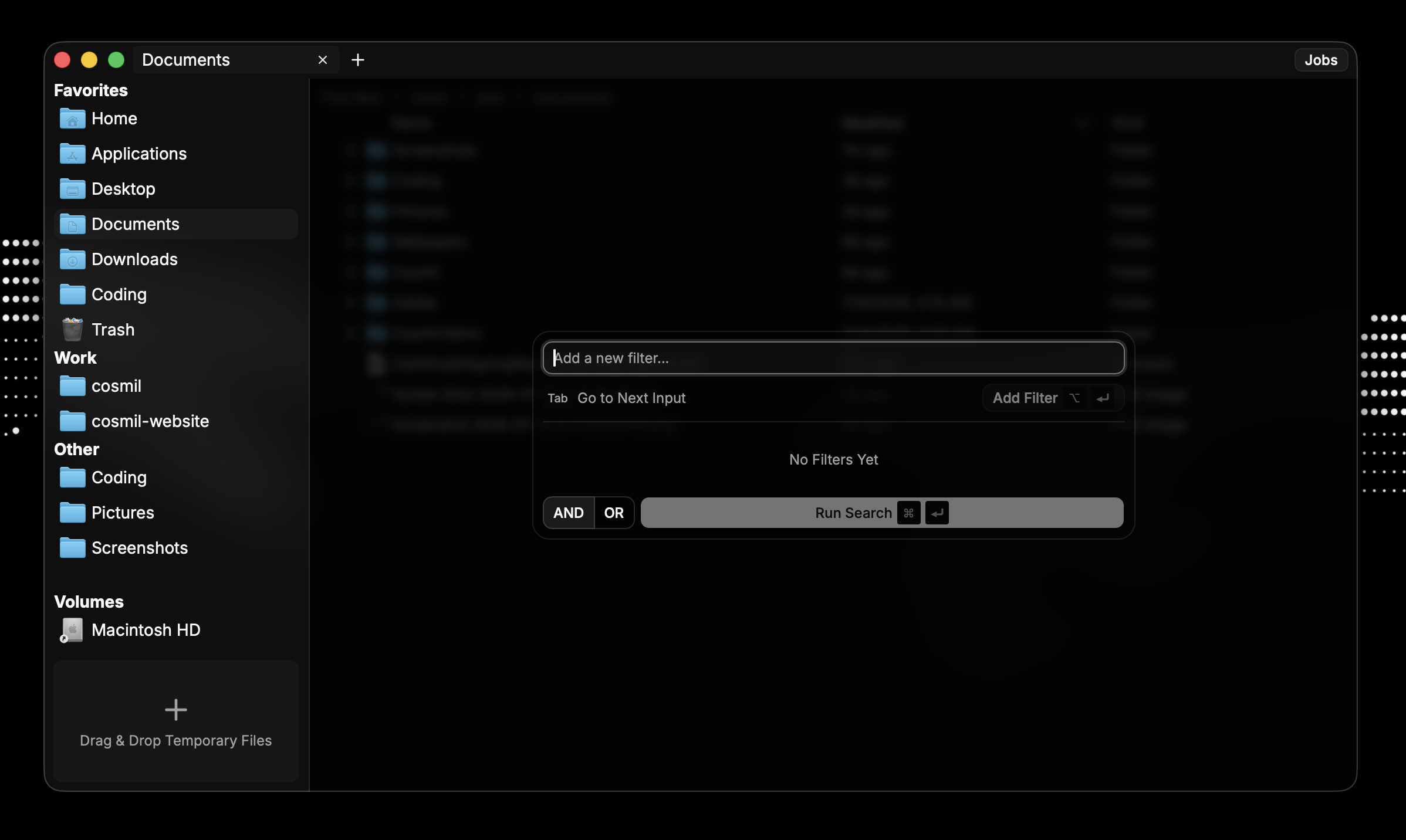
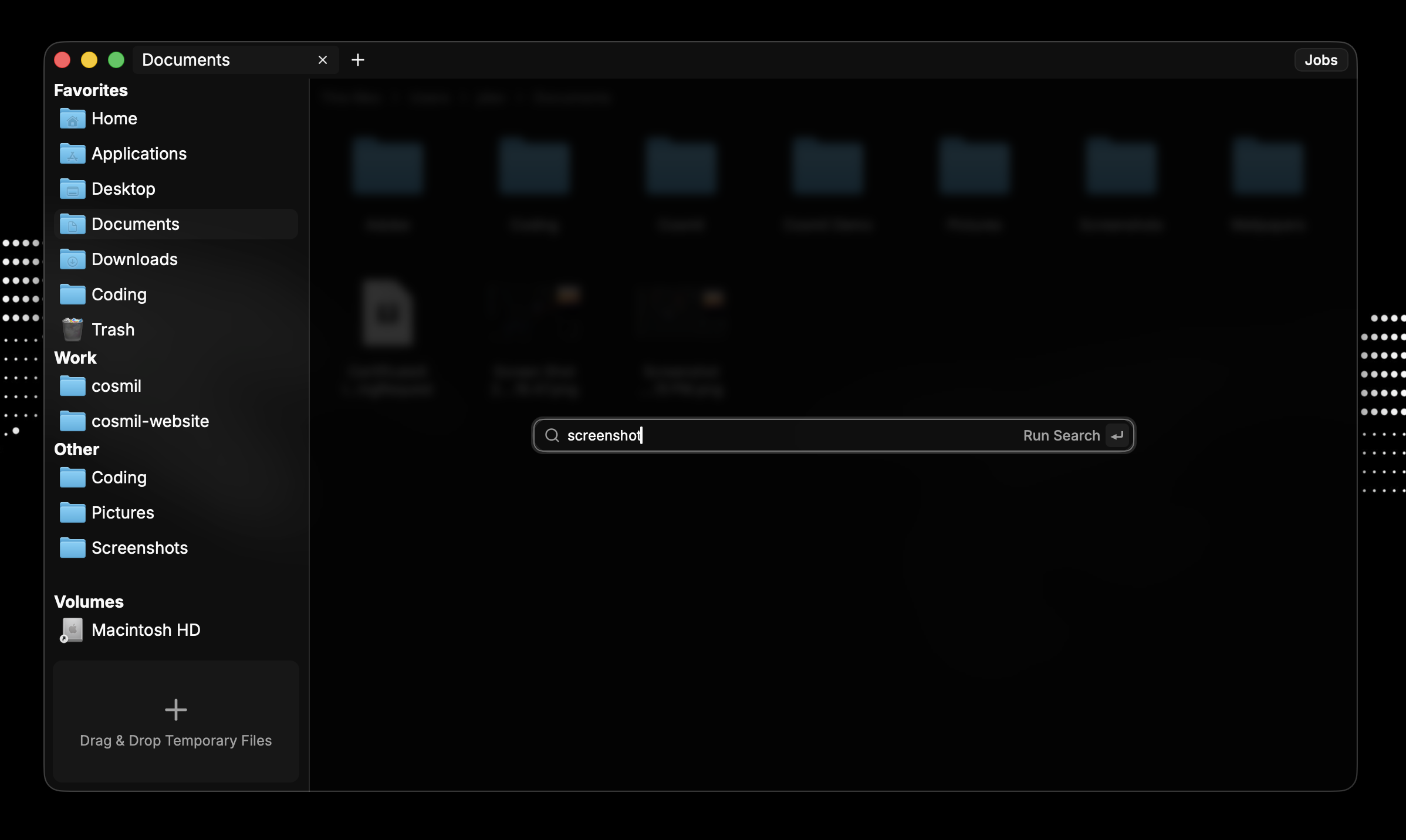
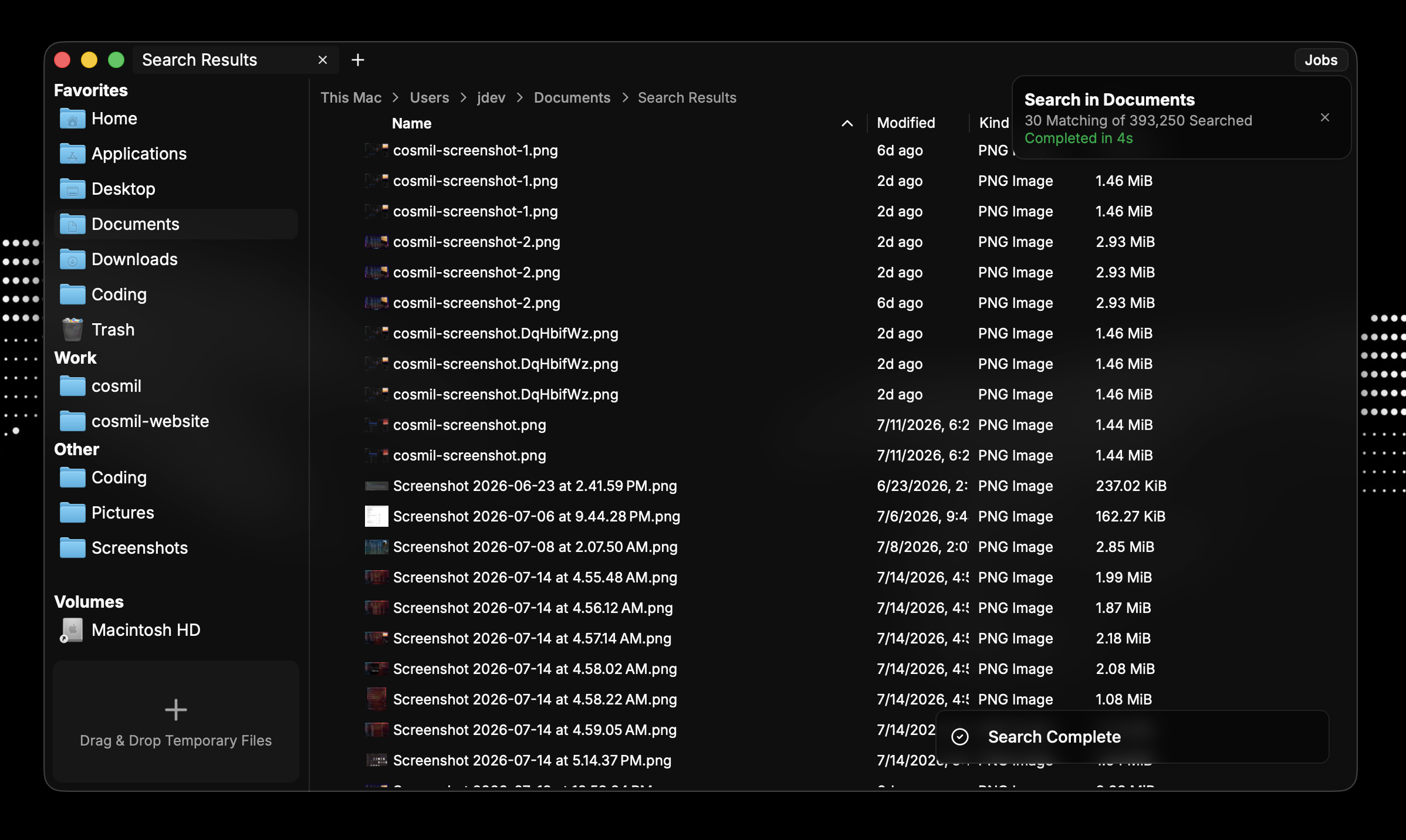
Just need to quickly search your files by name? Open Quick Search (⌘F), type in what you’d like to find and press Enter to start the search.
Example#
Advanced Search#
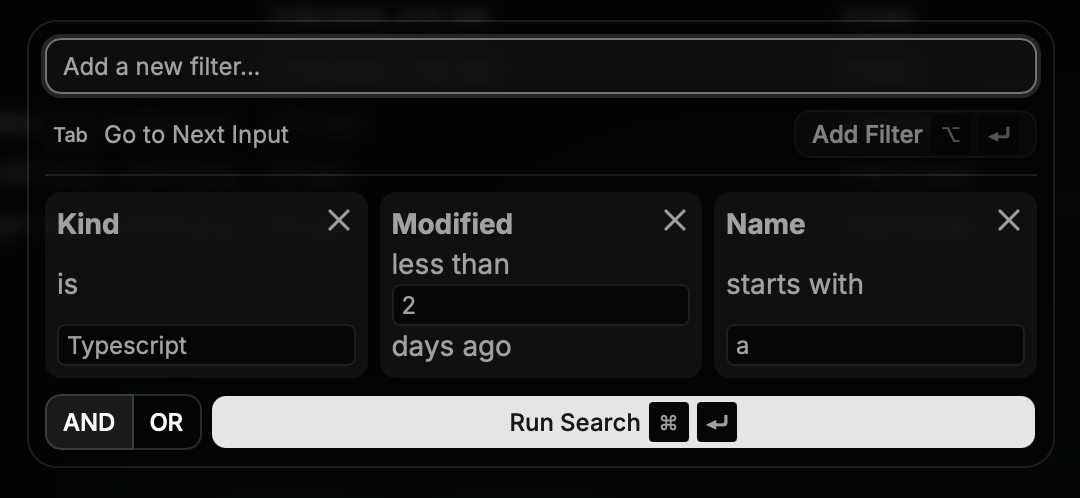
Advanced search (opened via ⌘⇧F) is far more powerful than simple search and gives you the ability to combine specific filters relating to files and their metadata.
Filters are made up of up to 4 components:
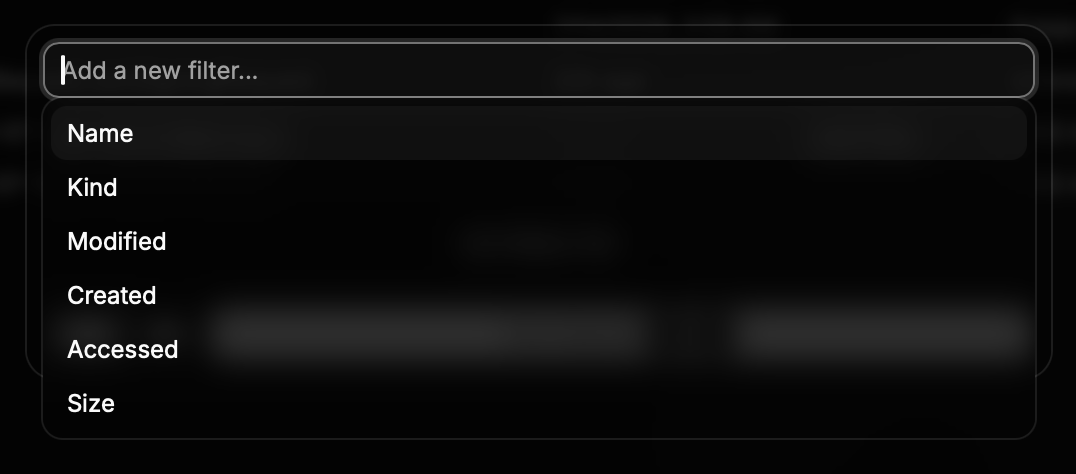
- Filter Type
- One of:
Name,Kind,Modified,Created,Accessed, orSize
- One of:
- Operator
- Name: One of
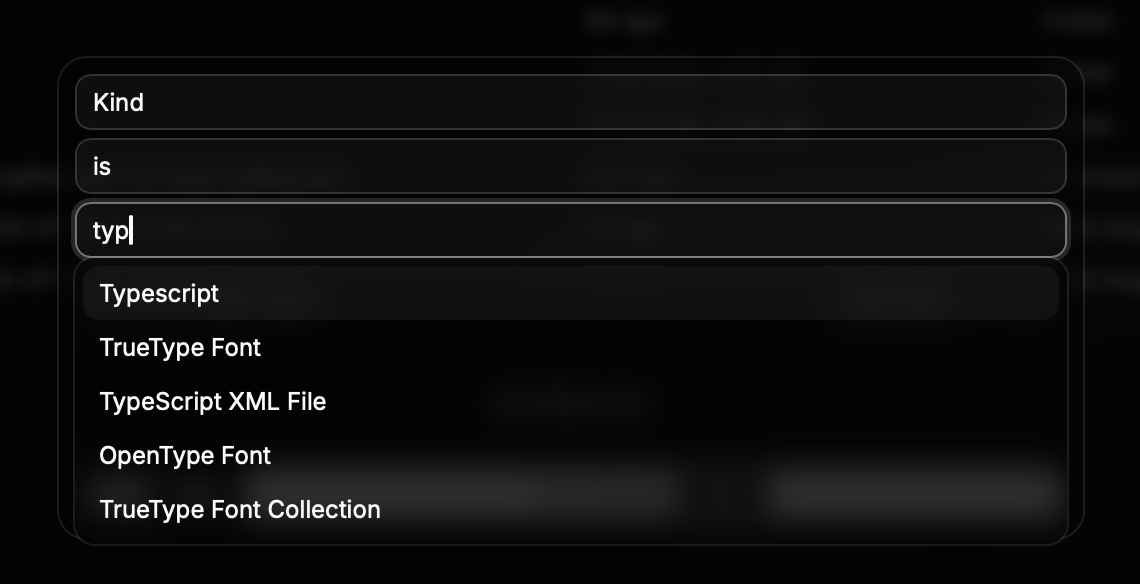
is,is not,contains,starts with, orends with - Kind:
isoris not - Temporal/Size:
more than,less than, orequal to
- Name: One of
- Selector
- Name: A string of characters
- Kind: One of the provided File Kinds
- Temporal/Size: A positive integer number
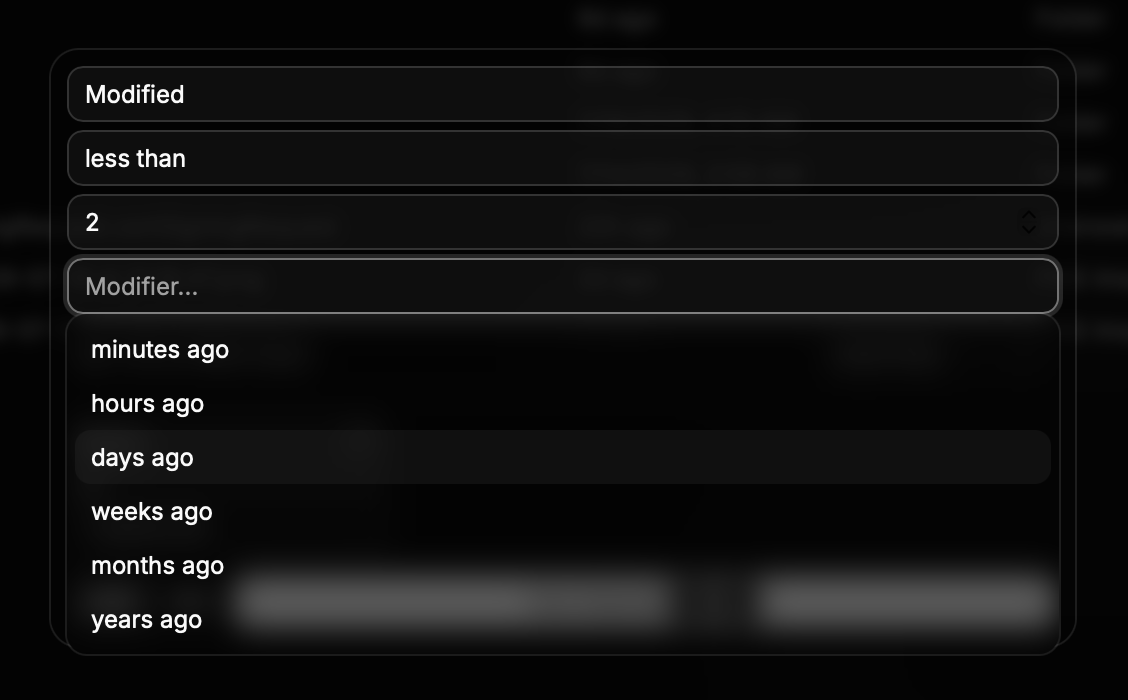
- Selector Modifier
- Temporal: One of
minutes/hours/days/weeks/months/yearsago - Size: One of
bytes,KiB,MiB,GiB,TiB, etc…NoteModifiers are only applicable to Temporal and Size filter types.
- Temporal: One of
Every component is available as an input in the search dialog (you have to select a filter type first to see the rest though). When you’ve input all the components for one of your filters, either press the Add Filter button or use the ⌥Enter keyboard shortcut.
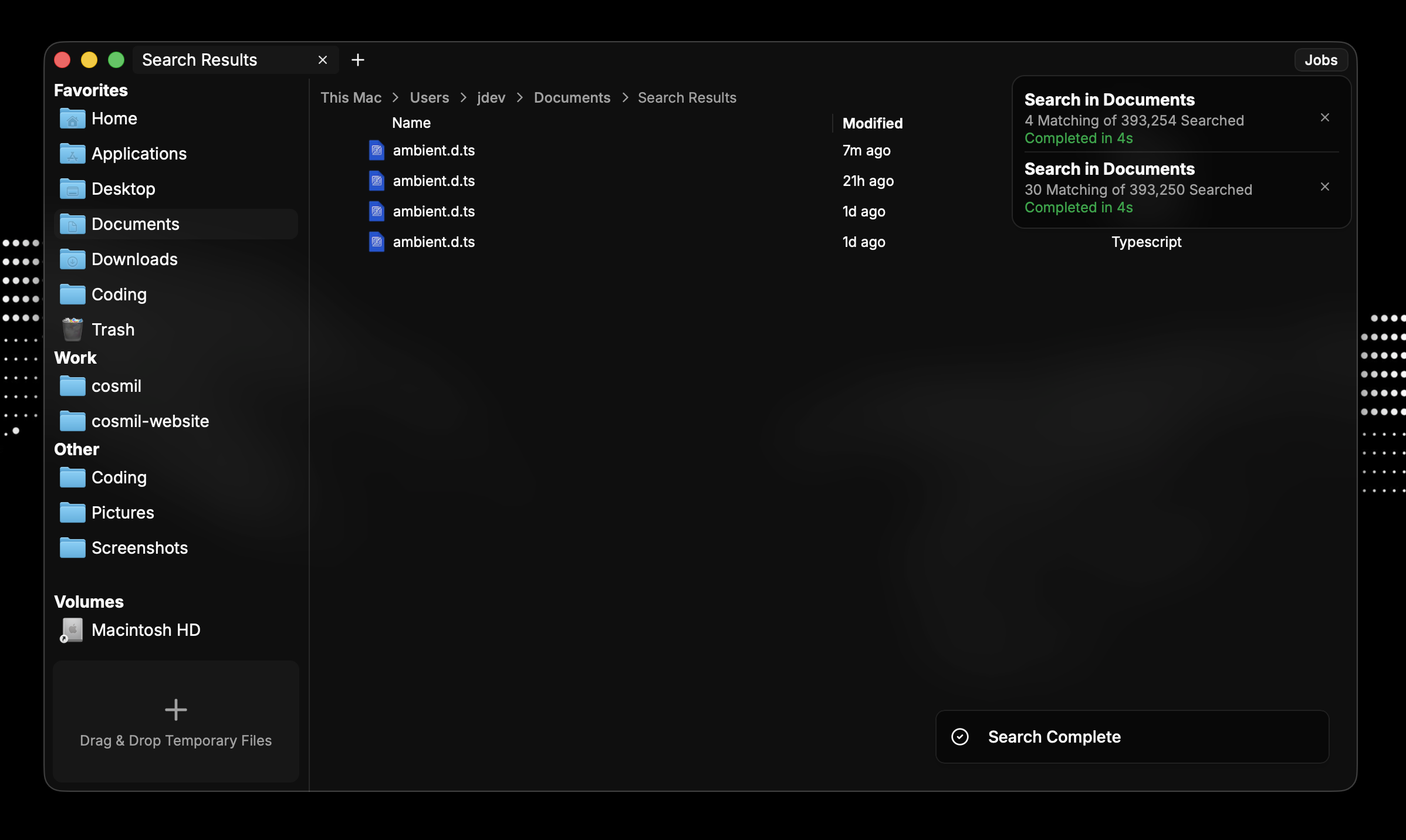
You can add as many filters as you like and combine with AND or OR logic — which you can choose at the bottom left of the dialog. Finally, to run your search you can press the Run Search button or use the ⌘Enter keyboard shortcut.
Example#